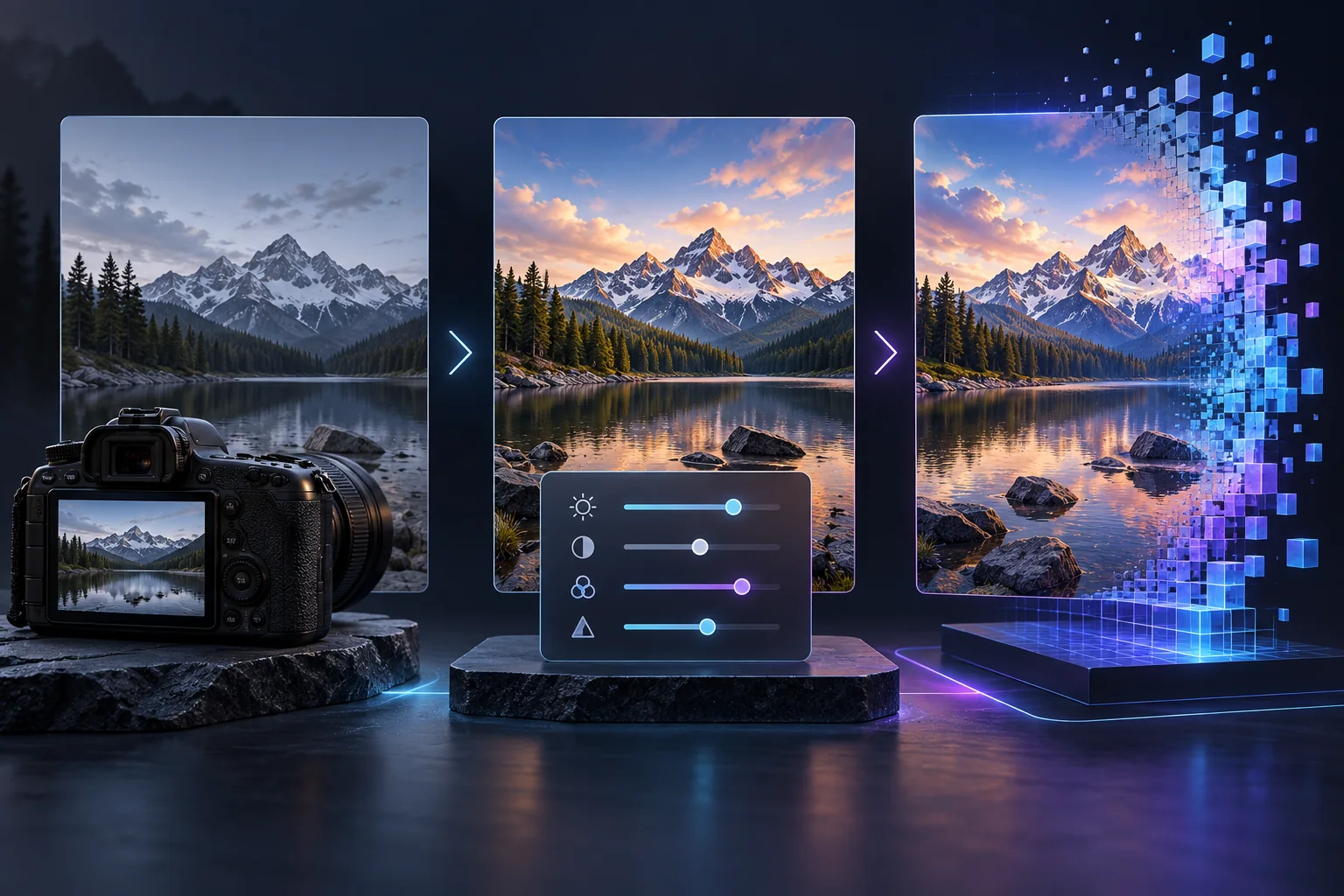
Inpainting is a generative editing technique that replaces or reconstructs a selected part of an image while using the surrounding picture as context. It is useful for correcting small defects, removing distracting objects, extending creative ideas or rebuilding a damaged region in a fictional composition.
The important distinction is that the selected region is generated, not recovered. The software does not reveal what was truly hidden behind an object or outside the original frame. It creates a plausible replacement based on the model, prompt, mask and nearby pixels.
What inpainting changes
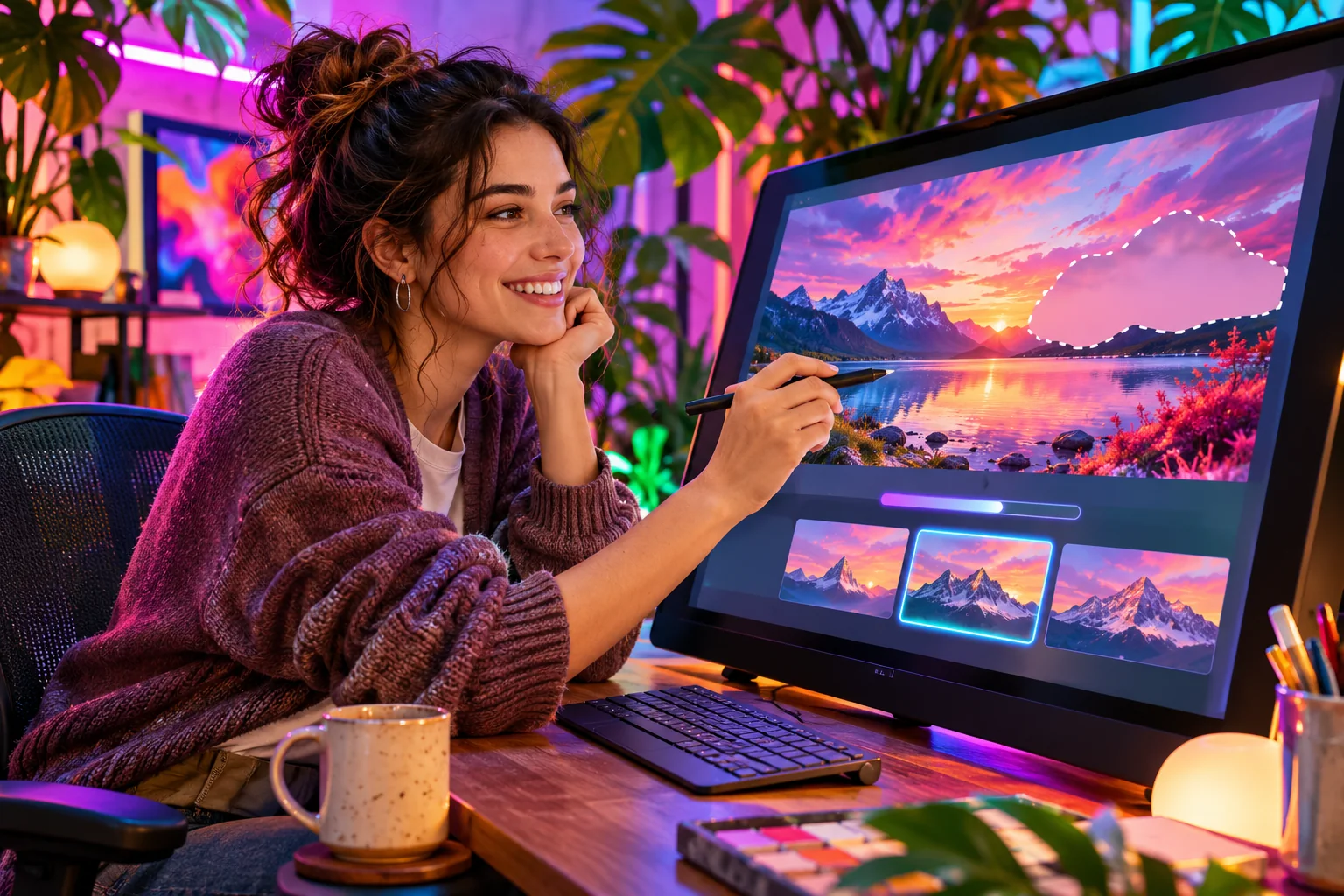
A typical workflow combines an input image, a mask and an instruction. The mask identifies the area that may change. The prompt guides the replacement. Settings determine how strongly the new result should differ from the original.
Use fictional artwork, landscapes, products or your own consented material for practice. Never present a generated replacement as factual evidence of what the original image contained.
Prepare the source image
- Start with the highest-quality version available rather than a compressed screenshot.
- Make a copy so the original remains untouched.
- Remove unnecessary metadata before uploading to an unfamiliar service.
- Check the provider's retention and training terms if processing occurs in the cloud.
Our guide to image metadata and privacy explains what a file may disclose beyond its visible pixels.
Build a useful mask
A tight mask gives the model less freedom but can leave a visible seam. A slightly wider mask gives it room to blend lighting, texture and edges. For most corrections, begin close to the problem and include a small border of surrounding context.
Soft mask edges often blend more naturally than a hard cut. If the replacement affects an object boundary, include enough of that boundary for the model to reconstruct it consistently.
Control the strength of the change
Denoising strength describes how far generation may move away from the source. Low values preserve more structure; high values allow a larger reinterpretation. The exact scale varies by interface, so compare several controlled attempts instead of treating one value as universal.
Change one major setting at a time and save the seed and settings of useful results. That makes failures easier to diagnose.
Write a focused prompt
Describe the replacement and the properties needed to match the scene: subject, material, perspective, lighting and colour. Avoid a long collection of conflicting adjectives. For a landscape correction, for example, specify the terrain and light direction rather than unrelated character details.
Inspect boundaries and consistency
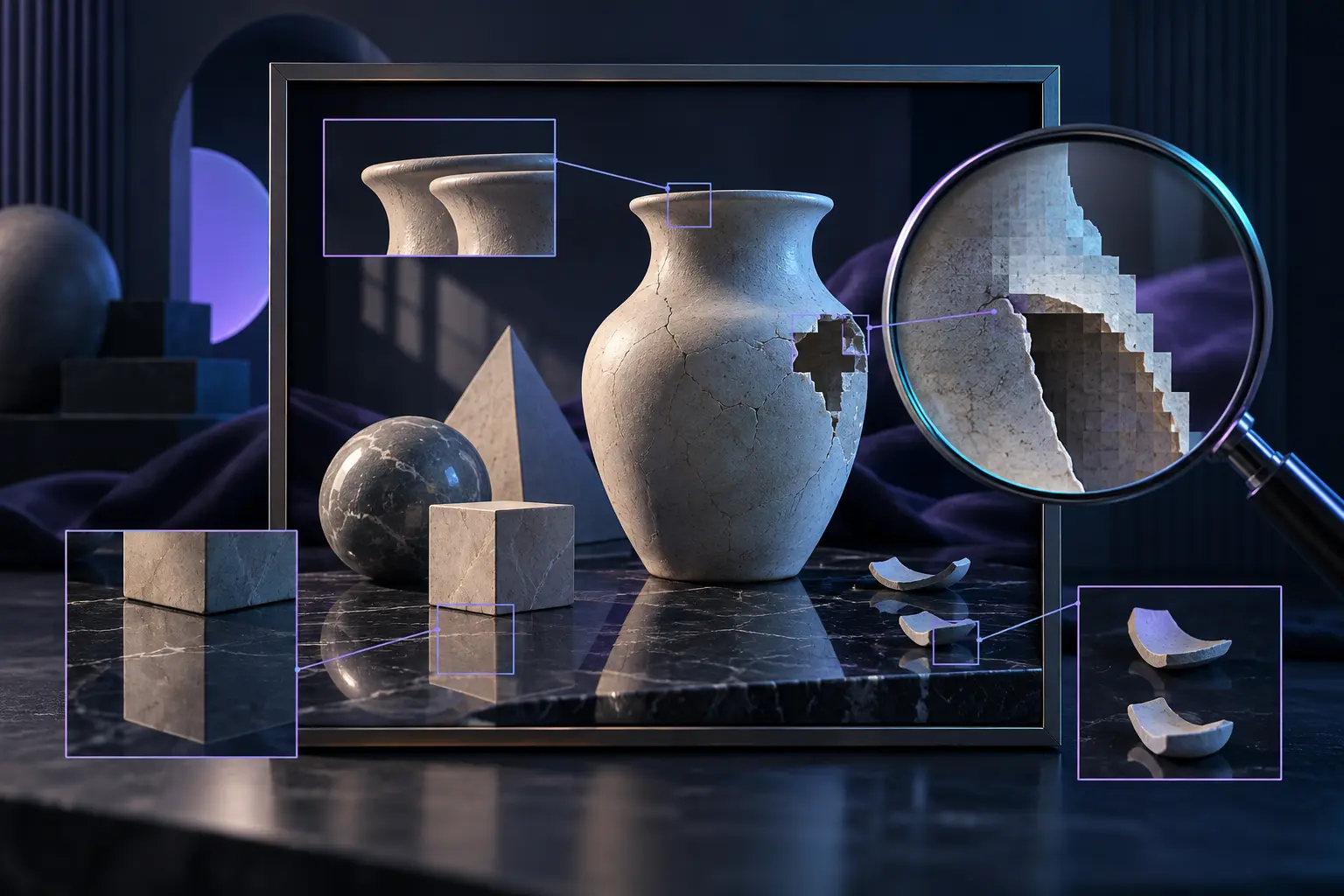
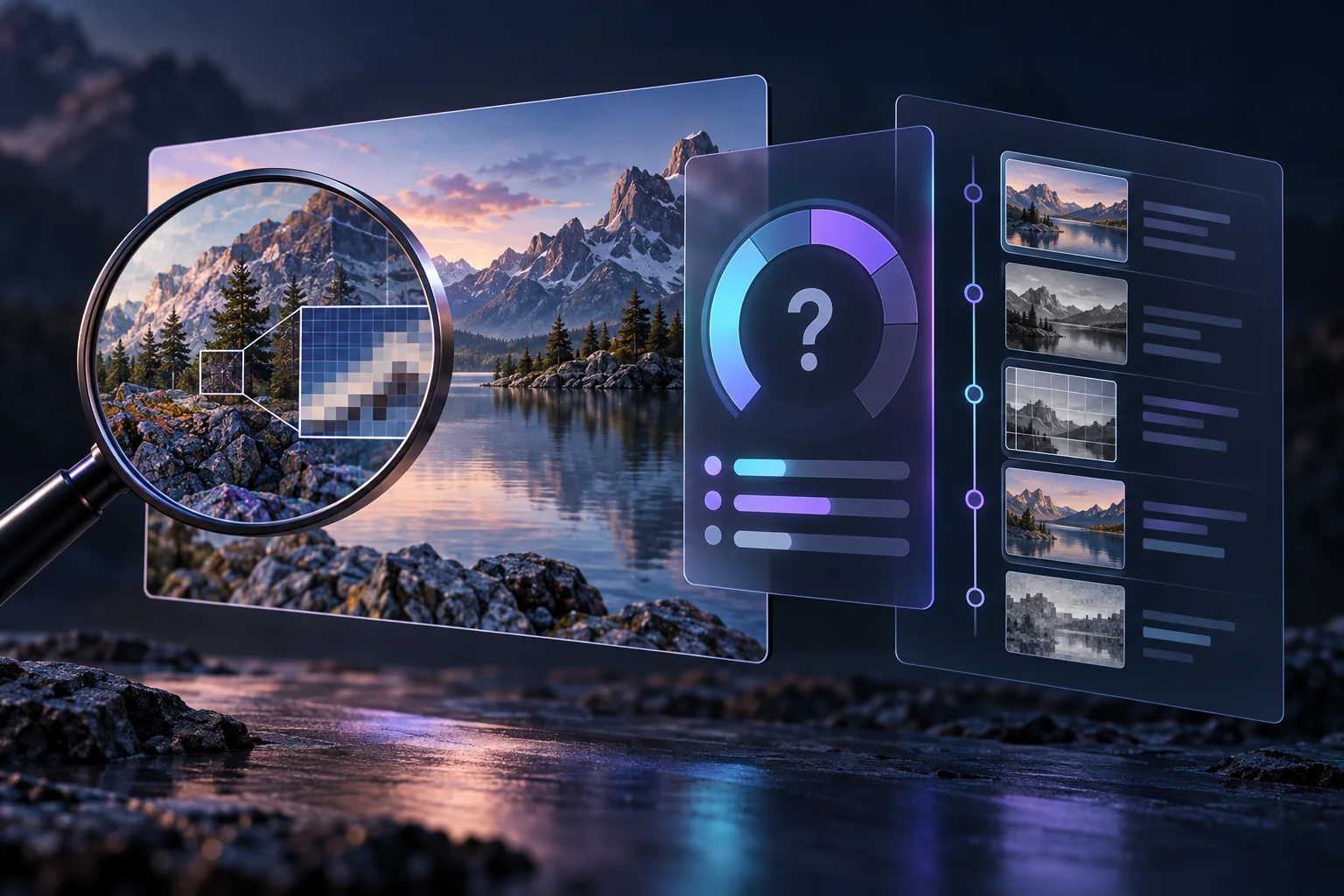
Zoom in on mask edges, repeated textures, shadows, reflections and geometry. Then zoom out and judge the whole composition. An edit may look convincing at one scale while producing a duplicated object or inconsistent light source elsewhere.
Use the checklist in How to Find and Fix AI Image Artifacts for a systematic review.
Responsible use
Inpainting should not be used to create deceptive intimate imagery of real people, impersonate someone, falsify evidence or modify material without the necessary rights and consent. Keep adult creative work fictional and clearly synthetic.
Frequently asked questions
What does inpainting do?
Inpainting generates a replacement inside a selected image region while using the surrounding image and instructions as context.
Can inpainting reveal what was hidden in the original image?
No. It creates a plausible synthetic replacement; it does not recover factual hidden content.
Why do inpainted edges sometimes look visible?
The mask may be too tight or hard-edged, or the replacement may not match the surrounding lighting, texture and perspective.
Should I regenerate the whole image or use inpainting?
Use inpainting for a limited defect. Regenerate when pose, perspective or the overall composition is structurally wrong.
Comparing hosted tools? Continue with the Undress AI tools comparison or browse the AI generator guide before choosing a third-party service.
Related reading
Stable Diffusion Image Generation Guide